Published on November 26, 2025 at 4:00 PMUpdated on November 26, 2025 at 4:00 PM
If you’re looking to boost your app security and streamline your login process, enabling Face ID for apps is one of the best options available. Many users rely on apps daily for banking, productivity, communication, health tracking, and entertainment, so keeping these apps secure is essential.
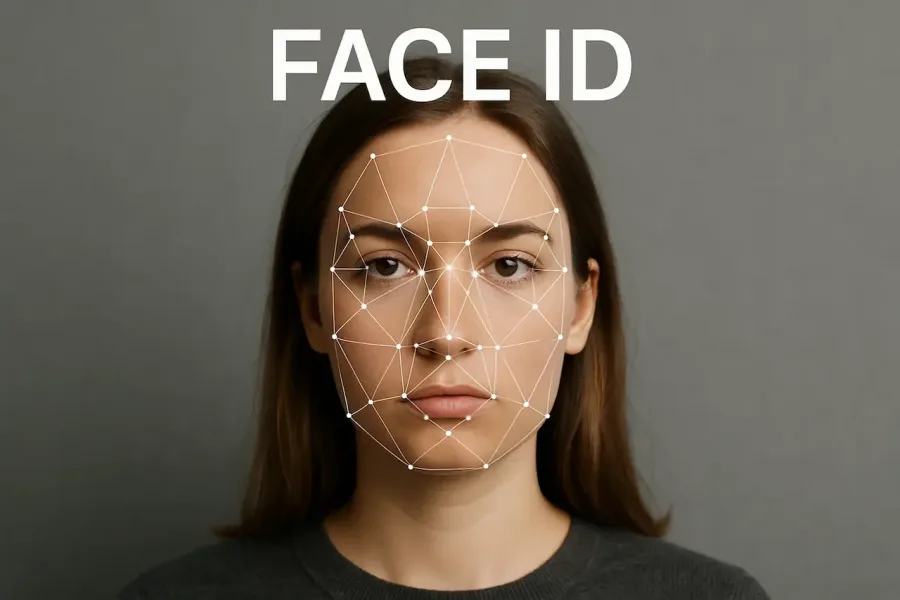
Face ID app activation methods (image: Gowavesapp)
Face ID provides a seamless, fast, and highly secure way to protect your information by using advanced facial recognition technology that verifies your identity with a quick glance.
Setting up Face ID for apps is easier than most people realize, but it’s important to follow the proper steps to ensure the feature works reliably across all supported apps. When you enable Face ID on your device and activate it within individual apps, you gain more control over how your personal information is accessed.
This not only improves the login experience but also reduces the need to enter passwords repeatedly. Whether you use productivity apps to manage your schedule or entertainment apps to unwind, enabling Face ID for apps enhances your overall mobile experience while keeping sensitive data protected.
Below are the best ways to set up, manage, and optimize Face ID for your apps.
Setting up Face ID for app authentication
Setting up Face ID for app authentication is simpler than you might expect, and once activated, it immediately improves the convenience and security of your device. This feature uses advanced biometric technology to map and recognize your facial features, allowing your device to verify your identity instantly.
To get started with Face ID for app authentication, begin by opening your device’s Settings. From there, tap on Face ID & Passcode. Your device will prompt you to enter your passcode for verification. Once inside, choose the option labeled Set Up Face ID if you haven’t enabled it yet.
Follow the on-screen instructions to register your face. You’ll be asked to position your face within the frame and gently move your head in a circle, allowing the sensors to capture a full facial scan. This process usually takes less than a minute and ensures that the device recognizes your face in various lighting conditions and angles.
Once Face ID has been successfully enabled, many apps that support biometric authentication will automatically detect the feature. The next time you log in or attempt to access secure features within a supported app, you will likely be prompted to use Face ID instead of entering a password or PIN. This provides a faster, smoother, and more secure login process.
Face ID for app authentication not only eliminates the frustration of typing passwords but also ensures that only you can unlock sensitive content, making it ideal for apps that handle financial information, private conversations, or personal data.
Managing Face ID permissions in app settings
When using apps that support Face ID, managing Face ID permissions becomes an essential component of maintaining privacy and security. Each app that utilizes Face ID has its own permission settings that allow you to control how biometric authentication is used.
To adjust Face ID permissions for your favorite apps, open your device’s Settings and scroll down to find the specific app you want to manage. Tap the app’s name to view its available permissions. Many apps will display a toggle option for Face ID or a category labeled Allow Face ID. Simply enable or disable the feature depending on your preference.
This level of control allows you to decide which apps can authenticate with Face ID and which apps should rely on passwords instead. Some users prefer to enable Face ID only for high-security apps such as digital wallets, banking apps, or email accounts. Others activate it across all compatible apps for convenience.
It’s also helpful to periodically review your Face ID permissions to ensure they reflect your current security needs. If you no longer use an app or if an app’s behavior seems suspicious, you can quickly turn off its Face ID access in just a few steps.
Managing Face ID permissions not only protects your privacy but also gives you the flexibility to tailor your device’s security settings to match your comfort level and usage habits.
Enhancing security with Face ID and app restrictions
Boosting your mobile security is easier than ever when you combine Face ID with app restrictions. These two features work together to ensure that only authorized users can access the most sensitive parts of your device.
Using Face ID with your favorite apps ensures that only you can unlock and access important content. Whether you store financial records, confidential emails, or health data in your apps, biometric authentication provides a strong layer of protection. Because Face ID cannot be easily replicated, it significantly reduces the risk of unauthorized access, even if someone knows your device passcode.
Setting up app restrictions in your device settings adds an additional level of control. App restrictions allow you to limit app usage, block inappropriate content, or prevent certain apps from being opened without biometric authentication. Families often use app restrictions to manage what children can access, while professionals may use them to protect work-related information stored on their personal devices.
By combining Face ID and app restrictions, you create a multi-layered security environment that is both practical and powerful. This combination is especially useful for users who rely on productivity apps, business tools, or entertainment apps with in-app purchases. With Face ID and restrictions working together, your apps and personal data remain secure no matter how often you use your device throughout the day.
Conclusion
Enabling Face ID for apps is one of the best ways to keep your personal information safe while enjoying seamless access to your favorite mobile tools. When you set up Face ID for apps, you eliminate the need to remember complex passwords or enter PINs repeatedly. A quick glance becomes all you need to unlock productivity apps, entertainment apps, messaging platforms, banking tools, and much more.
Take a few minutes to activate and manage Face ID permissions within your device settings. Review which apps have access to biometrics, enable Face ID where it makes sense, and combine it with app restrictions for an even more secure experience. These small steps not only boost your digital security but also streamline your daily interactions, making app usage faster, safer, and far more convenient.