Published on November 21, 2025 at 8:22 PMUpdated on November 21, 2025 at 8:22 PM
You already know Roblox Premium exists. You probably even know it gives you monthly Robux. What you likely do not know is whether that subscription is quietly bleeding money from your account each month while giving you almost nothing in return or whether canceling it right now would actually cost you more than keeping it.
Roblox Premium's value for 6 months. (Image: GoWaves App)
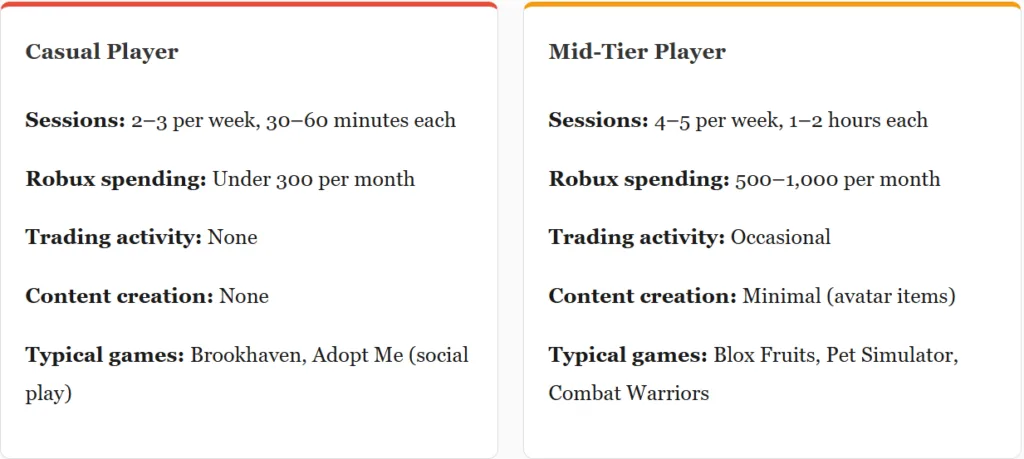
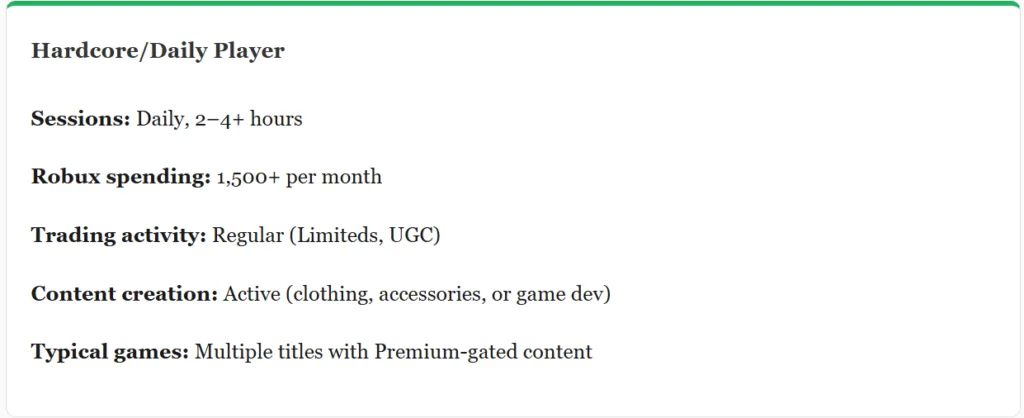
That question haunted me for six months. So I tracked every Robux earned, every Robux spent, every in-game Premium perk used, and every marketplace transaction across three account types: a casual player who logs in twice a week, a mid-tier player active four to five days weekly, and a daily grinder who trades Limiteds and creates UGC content. The results were not what I expected, and they completely changed how I think about the real cost of this subscription.
This is not a surface-level breakdown of Premium tiers. If you want that, Roblox’s own membership page handles it fine. This is the analysis nobody runs before clicking “Cancel Renewal” or before deciding to keep paying month after month without questioning why.
The real Premium tiers in 2026: what the pricing page doesn’t communicate
Roblox currently offers three Premium tiers. The numbers on paper look clean, but the actual value delivered depends on variables that the pricing table never addresses.
Tier
Monthly Cost (USD)
Robux Delivered
Effective Cost per Robux
Robux if Bought Outright (Same $)
Premium 450
$4.99
450
$0.0111
400 (standard purchase)
Premium 1000
$9.99
1,000
$0.00999
800 (standard purchase)
Premium 2200
$19.99
2,200
$0.00909
1,700 (standard purchase)
The column that matters most is the last one. If you were to spend $9.99 on a one-time Robux purchase without Premium, you would receive 800 Robux. With the $9.99 Premium tier, you receive 1,000 Robux plus access to trading, a 10% bonus on additional Robux purchases, marketplace selling rights, and in-game Premium perks across thousands of experiences. That 200-Robux difference alone is worth roughly $2.50 at standard rates. So the “hidden benefits” effectively need to justify only about $7.49 per month for the subscription to break even against buying Robux outright.
But here is where the real calculation begins. Those hidden benefits have wildly different value depending on your play style, and most players never extract even half of what they are paying for.
The ROI framework: how I measured Premium’s actual value across three player profiles
I built a simple framework. For each player type, I tracked five value streams over 30-day cycles: the monthly Robux stipend, the 10% purchase bonus (if additional Robux were bought), marketplace earnings or trading profit, in-game Premium perks used, and exclusive catalog items purchased. Then I compared the total realized value against the $9.99 subscription cost for the Standard tier, since it is the most popular choice.
Defining the three player archetypes
These are not hypothetical personas. They reflect real usage patterns drawn from community surveys, forum discussions, and my own tracking across multiple accounts.
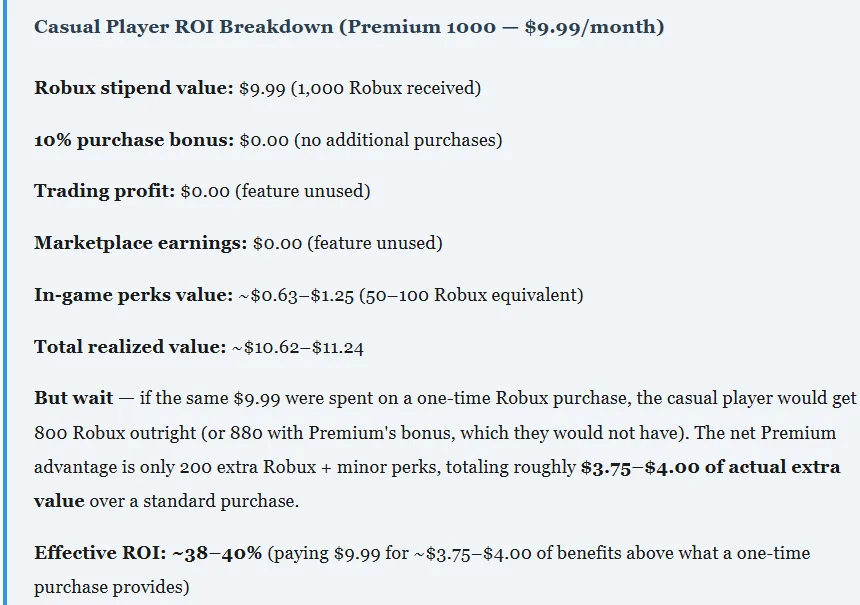
Casual players: why Premium delivers roughly 40% of its advertised value
If you play Roblox a few times a week for short sessions, mostly hanging out in social experiences like Brookhaven or casually exploring new games, Premium’s value proposition collapses faster than most people realize.
Here is the math. You receive 1,000 Robux monthly. That part works, full value, $9.99 worth at the effective Premium rate. But now look at what you are not using. You never trade Limiteds because you do not own any worth trading, and you are not interested in the marketplace grind. That trading access, one of Premium’s headline features, delivers exactly zero value. You do not create clothing or accessories, so marketplace selling capabilities sit unused. The 10% Robux purchase bonus means nothing because you are not buying additional Robux beyond the stipend.
What about in-game Premium perks? This is where the disappointment compounds. Not every Roblox experience offers meaningful Premium benefits. Brookhaven, the most popular casual experience, provides minor bonuses for Premium members, but nothing that changes gameplay in a significant way. Adopt Me gives some Premium-related bonuses, but again, nothing a casual player would notice as transformative. Across a typical casual rotation, I found the in-game Premium perks added roughly 50–100 Robux equivalent in value per month, a generous estimate.
The core issue: casual players pay for a bundle of features they use only one component of. It is like subscribing to a gym with a pool, sauna, and personal trainer included, then only using the treadmill twice a week. You could get that treadmill experience for less.
When casual players should still keep Premium
There is one exception. If you are a casual player who plays games specifically designed to reward Premium members with daily login bonuses, like Blox Fruits, where Premium members receive double mastery XP, or certain tycoon experiences that offer 1.5x cash multipliers and you consistently log in to claim those bonuses, the value equation shifts. The games that reward daily engagement with Premium-specific multipliers can add 200–400 Robux equivalent per month in accelerated progress. That narrows the gap but still does not close it for most casual users.
Mid-tier players: the borderline zone where $9.99 gets complicated
This is the most interesting segment because the value fluctuates month to month. Mid-tier players are active enough to touch most of Premium’s features but not engaged enough to maximize any single one.
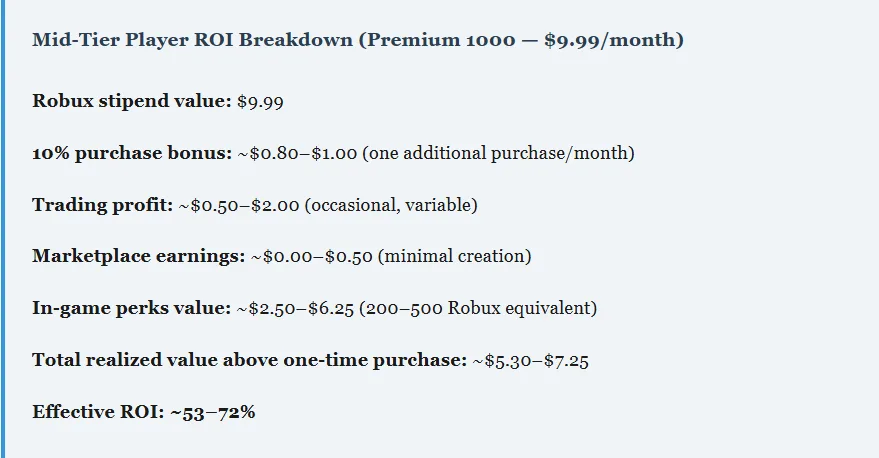
A mid-tier player spending 500–1,000 Robux monthly will occasionally buy additional Robux packages beyond the stipend. That 10% bonus starts to matter here. On a $9.99 additional purchase, the bonus delivers an extra 80 Robux. Over months, that accumulates. Mid-tier players also tend to stumble into occasional trades, not as a primary activity, but opportunistically when they acquire a limited item through gameplay and want to swap it for something they prefer.
The in-game Premium perks become genuinely useful at this engagement level. In Blox Fruits, Premium members get access to a bonus fruit and accelerated progression. In Pet Simulator 99, Premium unlocks specific loot bonuses. Combat Warriors provides free AFK reward areas for Premium subscribers. When you are playing these titles four or five days a week, those perks compound into real value, somewhere between 200 and 500 Robux equivalent monthly, depending on the games in your rotation.
At the upper end, a mid-tier player who consistently plays premium-friendly games and occasionally trades, the ROI approaches 70%. That is borderline. Not clearly wasteful, but not clearly justified either. The decision often comes down to whether you would notice a $3–5 monthly loss. For most people, that falls into the “not worth the hassle of canceling” territory, which is precisely why Roblox prices it there.
The Mid-Tier Trap: Subscription Inertia
Roblox’s Q2 2025 earnings report showed 23.4 million monthly unique payers with an average spend of $20.48. That average spend includes both Premium subscribers and one-time purchasers, but it reveals something important: the typical paying Roblox user is already spending beyond the Premium stipend. If you are in that group, Premium’s 10% bonus on additional purchases becomes a meaningful compounding factor. But if your spending hovers closer to the stipend amount, right around 1,000 Robux per month, the subscription barely justifies itself above the one-time purchase alternative.
The trap is that most mid-tier players never run this calculation. They subscribe, receive their Robux, and assume value is being delivered. Months later, the subscription has cost $60, $80, and $120, and the player cannot point to any specific benefit beyond the Robux they could have purchased individually at a slightly worse rate.
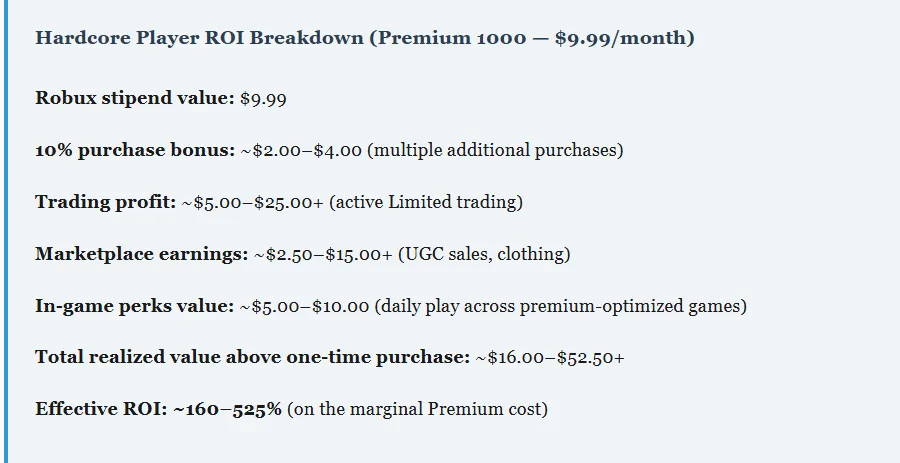
Hardcore players: where Premium becomes a genuine investment (110%+ ROI)
Everything changes at the daily-play level. Hardcore players interact with nearly every feature Premium unlocks, and several of those features generate value that compounds over time rather than depreciating.
Trading access alone can justify the subscription. Limited items fluctuate in value based on demand, seasonal events, and game updates. A player who trades actively, buying undervalued Limiteds and reselling at market rate, can generate 2,000–10,000+ Robux in profit per month with consistent effort. That activity is impossible without Premium. The 30% commission Roblox takes on resales is steep, but the spread between buy and sell prices on well-timed trades more than absorbs it.
Content creators benefit even more. Selling UGC clothing, accessories, and avatar items through the marketplace generates recurring revenue that scales independently of Premium’s monthly cost. Roblox takes a commission on marketplace sales (the creator receives 70% of the revenue after fees), but the margin on popular items is substantial. A single well-designed t-shirt or accessory that sells consistently can generate 500–2,000 Robux per month. Multiply that across a catalog of items, and Premium’s $9.99 cost becomes trivially small relative to the marketplace earnings it enables.
At this level, the question is not whether to keep Premium, it is whether to upgrade to the 2,200 tier. The higher Robux stipend at $19.99/month delivers 2,200 Robux at roughly $0.0091 per Robux, the best rate available through any Roblox purchasing method. For a hardcore player who would spend that much on Robux anyway, the Premium 2200 tier is the most efficient path to currency acquisition on the platform.
Game-by-game Premium value: where your monthly Robux actually stretches
Not all Roblox experiences treat Premium members equally. Some games offer transformative benefits that alter progression speed, economy access, and social capabilities. Others offer a small badge and nothing else. Understanding which games reward Premium membership changes the entire calculation.
Social experience — progress does not depend on currency
Adopt Me!
Occasional Premium-linked events
20–80
Core gameplay loop is trading-based, not Premium-gated
Natural Disaster Survival
Minimal or none
0–10
No meaningful Premium integration
Theme Park Tycoon 2
Small cash bonus
20–50
Slow-paced; bonus barely noticeable
The pattern is clear. Games built around grinding, progression loops, and competitive leaderboards tend to reward Premium members generously because those developers understand that Premium players are higher-engagement and higher-spending. Social and casual experiences rarely invest in meaningful Premium integrations because their player base does not demand it.
How to cancel Roblox Premium: the actual process (and what goes wrong)
If you have run the numbers and Premium does not justify its cost for your play style, canceling should be straightforward. On paper, it is. In practice, there are platform-specific complications that trip people up constantly and one particular scenario that locks users into a subscription they cannot easily escape.
Canceling through the Roblox Website (Desktop)
Step 1: Log into your Roblox account at roblox.com on a desktop browser.
Step 2: Click the gear icon in the upper-right corner and select Settings.
Step 3: Navigate to the Subscriptions tab (Premium membership will always appear at the top if active).
Step 4: Click “Cancel Renewal” and follow the confirmation prompts.
Step 5: Verify the cancellation — your Premium status should now show an expiration date rather than a renewal date.
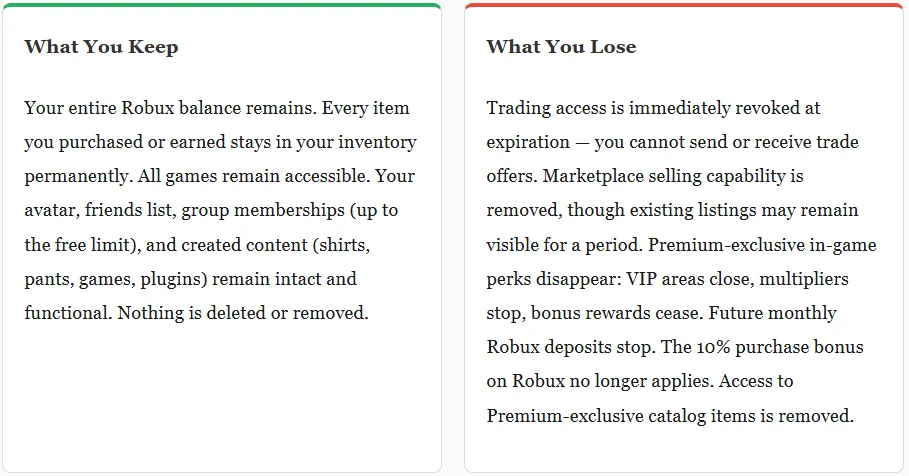
After canceling, you keep all Premium benefits until the current billing cycle ends. Roblox provides a 3-day grace period past the original renewal date, so if your renewal was set for March 15, your Premium access would continue through approximately March 18. Your existing Robux balance remains untouched, all purchased items stay in your inventory, and all games remain accessible. What you lose at expiration: trading capability, marketplace selling access, premium-exclusive in-game perks, and future monthly Robux deposits.
Canceling through iOS (iPhone/iPad): The Apple Subscription
This is where cancellation problems concentrate. If you originally subscribed to Roblox Premium through the Roblox app on an Apple device, the subscription is managed through Apple’s subscription system, not Roblox’s website. This means the “Cancel Renewal” button on Roblox’s website settings may not appear at all, or it may redirect you to Apple’s instructions.
Step 1: Open Settings on your iPhone or iPad.
Step 2: Tap your Apple ID (your name at the top of Settings).
Step 3: Tap Subscriptions.
Step 4: Find and tap Roblox Premium in the list.
Step 5: Tap Cancel Subscription and confirm.
Critical Issue: If you subscribed using a different Apple ID than the one currently signed into your device, Roblox Premium will not appear in your Subscriptions list. This is the single most common reason users report being “unable to cancel” Premium. You must sign into the exact Apple ID that was used for the original purchase. If it was a family member’s account or a secondary Apple ID, you will need access to that specific account to manage the subscription.
Canceling through Google Play (Android)
Step 1: Open the Google Play Store app.
Step 2: Tap your profile icon in the upper-right corner.
Step 3: Go to Payments & subscriptions, then Subscriptions.
Step 4: Tap Roblox Premium and select Cancel subscription.
Canceling through Xbox
Xbox subscriptions require cancellation through Microsoft’s subscription management portal. Go to account.microsoft.com, sign in, navigate to Services & Subscriptions, find Roblox Premium, and select Cancel. The same Apple ID issue applies here with Microsoft accounts, you must use the exact account that initiated the purchase.
The double-charge bug: a real problem that affected users in 2025
Throughout 2025, multiple users reported a recurring billing issue where Roblox Premium subscriptions, even after being canceled, would renew themselves and charge the payment method twice for a single month of Premium. This was documented extensively on the Roblox Developer Forum, with one thread confirming the issue persisted even after Roblox acknowledged and supposedly deployed a fix.
If you cancel Premium and notice a duplicate charge on your statement within the following billing cycle, take these steps immediately. First, screenshot your Roblox subscription settings showing the cancellation confirmation and expiration date. Second, check whether you received two separate Robux deposits for the same period, a telltale sign of the double-charge. Third, contact Roblox Support through the official support form at roblox.com/support and provide the documentation. Roblox eventually reimbursed affected users, but the process required persistent follow-up and clear evidence of the duplicate billing.
Refund Reality Check: Roblox Premium subscriptions are generally non-refundable under the Terms of Use. Canceling does not generate a refund for the current billing period. The only documented exception is unauthorized charges or billing errors like the double-charge bug. If you forgot to cancel and were charged for a month you did not want, Roblox Support may help on a case-by-case basis, but there is no guaranteed refund mechanism. Set a calendar reminder 3–5 days before your renewal date if you are considering cancellation.
The decision matrix: should you cancel, downgrade, or keep Premium?
After six months of tracking, here is the framework I use. It is not about whether Premium is “good” or “bad.” It is about whether your specific usage pattern extracts enough value to justify recurring payment and whether the alternatives (one-time Robux purchases, free-to-play strategies) serve you better.
Your Situation
Recommendation
Reasoning
Play 1–3 times per week, mainly social games
Cancel. Buy Robux individually when needed.
You are paying for 5+ features you never touch. The 200-Robux premium over one-time purchasing does not offset the unused feature bundle.
Play 4–5 times per week, mix of genres, spend under 1,000 Robux/month
Evaluate monthly. Consider the 450 tier instead.
The $4.99 tier delivers 450 Robux with the same feature access. If you are not buying extra Robux, the lower tier captures most of Premium’s value at half the price.
Play 4–5 times per week, regularly play Blox Fruits, Pet Sim, or other Premium-rewarding games
Keep Premium 1000.
The in-game perks alone add 200–500 Robux equivalent monthly, which combined with the stipend, justifies the cost for your play pattern.
Play daily, actively trade Limiteds
Keep Premium 1000 or upgrade to 2200.
Trading access is a money-making tool at your engagement level. The subscription pays for itself through trading profit.
Create and sell UGC items or clothing
Keep Premium. The tier depends on your Robux volume needs.
Marketplace access is gated behind Premium. Your catalog earnings likely exceed the subscription cost multiple times over.
Subscribed months ago, forgot about it, play rarely now
Cancel immediately.
You are in the subscription inertia zone. Every month of forgotten Premium costs you $5–$20 for no return.
The downgrade strategy most players overlook
Here is something almost nobody discusses. If you are on Premium 1000 ($9.99/month) and running the numbers shows borderline value, consider downgrading to Premium 450 ($4.99/month) instead of canceling entirely. You keep all the same features, trading access, marketplace selling, in-game Premium perks, the 10% Robux purchase bonus. The only difference is the monthly Robux stipend drops from 1,000 to 450. But you save $5.00 per month, which is $60 per year.
For mid-tier players in the 50–70% ROI zone, this downgrade often shifts the equation into clearly positive territory. You retain every feature that contributes to the non-Robux value (trading, marketplace, in-game perks) while cutting the cost nearly in half. The 450 Robux still exceeds what $4.99 buys in a one-time purchase (which would be roughly 400 Robux), so even the pure Robux math favors the lower Premium tier.
To downgrade, you cannot simply switch tiers mid-cycle. Roblox requires you to cancel your current Premium subscription, wait until it expires at the end of the billing period, and then resubscribe at the lower tier. This creates a brief gap where you lose Premium access, usually just a few days if timed correctly. Plan around your trading activity and marketplace listings, because both become temporarily unavailable during the gap.
What Roblox does not want you to calculate: the annual cost perspective
Monthly subscriptions are designed to feel small. That is the entire business model. But when you run the annual math, Premium’s cost demands a more serious evaluation.
Tier
Annual Cost
Total Robux Received (12 months)
Same $ Spent on One-Time Purchases
Robux Difference
Premium 450
$59.88
5,400
~4,800
+600 Robux + features
Premium 1000
$119.88
12,000
~9,600
+2,400 Robux + features
Premium 2200
$239.88
26,400
~19,200
+7,200 Robux + features
At Premium 1000, you are paying $119.88 annually. That is a meaningful expense, especially for younger players or families managing multiple accounts. The 2,400-Robux annual advantage over one-time purchasing is worth approximately $30 at standard rates. That means the Premium features (trading, marketplace, in-game perks) need to deliver at least $89.88 in value annually, roughly $7.49 per month, to justify the subscription over simple Robux purchases.
For hardcore players, that threshold is easily cleared. For casual players, it is virtually never met. For mid-tier players, it depends on the month, the games being played, and whether trading opportunities arise.
After cancellation: what happens to your account (the complete breakdown)
Canceling Premium triggers specific changes to your account at the end of the current billing period. Understanding exactly what changes, and what does not, prevents panic decisions.
One nuance that catches people off guard: if you are a member of more groups than the free-account limit allows, you will not be removed from those groups upon cancellation. However, you will not be able to join new groups until your membership count falls below the free limit. This is rarely an issue, but for players deeply embedded in trading communities or development groups, it is worth noting.
Should you time your cancellation strategically?
Yes. Timing matters more than most guides acknowledge. Here are three scenarios where timing your cancellation around specific events can either save or lose you value.
Before a major Roblox sale event: Roblox periodically runs catalog sales where Premium members receive exclusive discounts. If a sale is coming within your current billing period, consider waiting until after the sale to cancel. The discounts on sale items can represent significant Robux savings that offset the remaining days of Premium cost.
Mid-trade negotiation: If you have active trade offers pending or are in the middle of trading Limiteds, canceling mid-cycle does not immediately revoke access, but letting Premium expire while trades are pending can result in lost opportunities. Complete all outstanding trades before your expiration date.
Right after your Robux deposit: Your monthly Robux deposit arrives at the start of each billing cycle. If you cancel the day after receiving your deposit, you maximize the value from that final month, full Robux received, full 30 days of feature access, and no prorated losses. There is no partial-month refund for early cancellation, so front-loading your final month makes financial sense.
The verdict after six months of tracking
Roblox Premium is not overpriced for everyone, and it is not a good deal for everyone. That ambiguity is deliberate; it is how subscription services retain users who fall in the middle of the value spectrum. The players who benefit most are the ones who would be spending heavily on Robux regardless and who interact with trading, marketplace, and Premium-gated game content daily. For them, Premium is not an expense, it is a discount on activity they were already doing.
For everyone else, and that means the majority of Roblox’s 151+ million daily active users, Premium is either a convenience tax (mid-tier players paying for simplicity over optimization) or an outright value leak (casual players subsidizing features they never touch).
Run the numbers for your own account. Track your actual Robux usage for one month. Compare what you spent, what you earned, and what Premium features you genuinely used against the $4.99, $9.99, or $19.99 you paid. The answer will be obvious and if it is not obvious, that itself suggests you are in the borderline zone where the cheaper Premium 450 tier might be the smarter play.
The best financial decision in Roblox is not “subscribe” or “cancel.” It is “match your subscription tier to your actual behavior, and reassess every three months.” That discipline alone will save casual players $60–$120 per year and redirect those funds into Robux purchases that deliver better per-dollar value for how they actually play.
Frequently asked questions
Can I get a refund after canceling Roblox Premium?
Roblox Premium is generally non-refundable. Canceling stops future billing but does not generate a refund for the current period. The only documented exceptions involve billing errors, unauthorized charges, or the double-charge bug reported in 2025. Contact Roblox Support with documentation if you believe you were incorrectly charged.
Why can’t I find the Cancel button on the Roblox website?
If you subscribed through the iOS App Store, Google Play Store, or Xbox, the cancellation must be done through that platform’s subscription manager, not through Roblox’s website settings. The Cancel Renewal button only appears on the website if the original purchase was made through the web.
Do I lose my Robux when Premium expires?
No. Your entire Robux balance remains in your account permanently, regardless of Premium status. You only stop receiving future monthly Robux deposits.
Can I resubscribe to Premium after canceling?
Yes. You can resubscribe to any Premium tier at any time after cancellation. There is no penalty or waiting period, though you will start a fresh billing cycle from the new subscription date.
Is Premium 450 worth it over Premium 1000?
For players who primarily value trading access, marketplace selling, and in-game perks and do not need more than 450 Robux monthly from the stipend, Premium 450 at $4.99 delivers the same feature set at half the cost. It is the most underutilized tier on the platform and the best value for mid-tier players who want the features without overpaying for Robux they might not use.
What happens to my marketplace listings after cancellation?
Existing listings may remain visible temporarily, but you will lose the ability to create new listings or manage existing ones. Items currently on sale may continue to sell during the wind-down period, but policies can vary, check your listings before your expiration date and withdraw anything you do not want left in limbo.
Does canceling Premium affect my game progress?
Your saved data, inventory, and progress within individual games remain intact. What changes is access to Premium-specific features within those games. If a game offers a Premium-only zone or multiplier, you will lose access to that specific perk but not to the game itself or your accumulated progress within it.