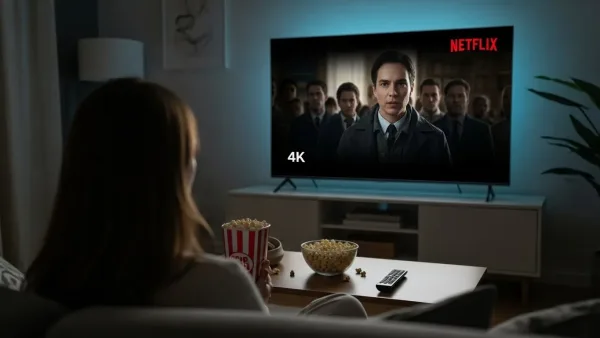
To cast Netflix, simply open the app on your smartphone, tablet, or computer, tap the Cast icon, and select your Chromecast device. This seamless setup enhances your viewing experience, allowing you to enjoy high-quality streaming from the comfort of your living room.
Keep in mind that a strong Wi-Fi connection and compatible devices are essential for smooth playback. If you encounter any issues, troubleshooting tips like restarting your Chromecast or updating the Netflix app can help resolve common problems.
Embracing Netflix on Chromecast combines convenience and superior streaming, making it a top choice for tech-savvy entertainment lovers.
How to set up Chromecast for Netflix
Setting up Chromecast to stream Netflix is easy and lets you enjoy your favorite shows on a big screen. Follow these simple steps to get started:
Connect Your Chromecast: Plug your Chromecast device into an available HDMI port on your TV and connect the power cable to a power source.
Set Up Chromecast with Google Home App: Download and open the Google Home app on your smartphone or tablet. Follow the on-screen instructions to connect your Chromecast to your home Wi-Fi network.
Cast Netflix to Your TV: Open the Netflix app on your mobile device or visit Netflix on your computer’s Chrome browser. Tap or click the Cast icon and select your Chromecast device to start streaming.
Casting Netflix from a smartphone or tablet
Want to watch Netflix on your TV using your smartphone or tablet? It’s easy with Chromecast. First, make sure your mobile device and Chromecast are connected to the same Wi-Fi network. Then, open the Netflix app on your phone or tablet. Look for the Cast icon (a small rectangle with Wi-Fi waves) and tap it.
Select your Chromecast device from the list, and your favorite Netflix shows and movies will start playing on your TV. You can control playback directly from your mobile device, making it simple to pause, play, or browse content while enjoying a bigger screen. This quick and user-friendly method lets you stream Netflix effortlessly from your mobile device to your TV.
Using Netflix with Chromecast on a computer
Streaming Netflix from your computer to a TV using Chromecast is an easy and affordable way to watch your favorite shows and movies on a bigger screen. To get started, open Netflix in the Google Chrome browser, click the cast icon located in the top-right corner, and select your Chromecast device.
This method delivers high-quality video and audio, giving you a seamless viewing experience. Plus, you can control playback directly from your computer, making it simple to pause, rewind, or browse Netflix while enjoying content on your television. Using Chromecast with Netflix on a computer is a smart choice for anyone looking to enhance their streaming setup without extra equipment.
Troubleshooting common Chromecast Netflix issues
If you’re experiencing problems using Netflix with Chromecast, you’re not alone. Issues like buffering, connection drops, or casting errors are common but can often be fixed quickly. To resolve these problems, start by restarting your Chromecast device and the device you are casting from, such as your smartphone or tablet. Make sure both your Netflix app and Chromecast firmware are updated to the latest versions for optimal performance.
A strong and stable Wi-Fi connection is essential, so check your network signal and router settings. Additionally, verify your HDMI cable and port connections to ensure your TV displays Netflix properly. Following these simple troubleshooting steps can help you enjoy seamless Netflix streaming on Chromecast.
Tips for improving streaming quality on Chromecast
Chromecast usually provides smooth streaming, but you can improve your Netflix experience by optimizing your settings and network. Make sure your Wi-Fi signal is strong and stable, reduce interference from other devices, and keep your Chromecast firmware and Netflix app updated to avoid buffering issues.
You can also adjust the streaming quality in Netflix settings to find the right balance between data usage and video resolution, ensuring smoother playback that matches your internet speed and device capabilities. Following these tips will help you enjoy better Netflix streaming quality on your Chromecast.
Compatible devices and Netflix account requirements
Using Netflix with Chromecast is simple and convenient, but it requires compatible devices and an active Netflix subscription. To cast Netflix content, you need a smartphone, tablet, or computer with the Netflix app or a supported browser.
Most Netflix plans allow streaming on external devices like Chromecast, so make sure your subscription supports this feature. By confirming device compatibility and having an active Netflix account, you can easily enjoy your favorite shows and movies on a Chromecast-enabled TV.
Alternative ways to stream Netflix to your TV
If you’re looking for different ways to stream Netflix to your TV besides using Chromecast, there are several easy options to consider. You can connect your laptop or smartphone directly to your TV using an HDMI cable for a quick setup.
Many smart TVs come with built-in Netflix apps, allowing you to stream without any extra devices. Additionally, popular streaming devices like Roku, Amazon Fire Stick, and Apple TV offer seamless Netflix access and user-friendly interfaces. These methods provide flexible and convenient ways to enjoy Netflix on your big screen, enhancing your streaming experience.
Conclusion
Netflix works perfectly with Chromecast, allowing you to stream your favorite shows and movies on your TV easily. To use Netflix with Chromecast, just connect your Chromecast device to your TV and make sure it’s linked to the same Wi-Fi network as your smartphone, tablet, or computer.
Then, simply open the Netflix app and tap the cast icon to start watching on the big screen. This simple setup delivers high-quality video and smooth playback, enhancing your home entertainment experience. For the best results, ensure your devices are compatible and troubleshoot any connection issues to enjoy uninterrupted streaming. Chromecast is a smart and affordable way to bring Netflix content to your living room.