

AI
I analyzed Gemini’s integration with Google ecosystem. The reality: it’s convenient, not revolutionary. And it requires huge privacy trade-off
We tested Gemini’s multimodal capabilities for 60 Days. Here’s what we find out
We spent 60 days comparing ChatGPT and Gemini. Here’s what Google doesn’t want you to know
What we measured about ChatGPT’s environmental cost when we ran the numbers and tracked the energy flow
Education

We tested 50 study apps with 150 real students
I tested Duolingo, Quizlet, and Babbel for 60 days. 11 dark patterns designed to keep you learning
I tested 20 educational apps with real blind and deaf users
I tested Duolingo, Babbel, and Rosetta Stone with 100 Students for 6 Months. Only 3% became fluent.
Entertainment

I analyzed photo editor pricing: hidden costs revealed
The TikTok money illusion: what 8 payout metrics expose about creator earnings in 2026
We ran 8 controlled tests on TikTok’s algorithm over 90 days.Here’s what actually predicts viral success (and what’s just noise)
The TikTok ban was never about your data. Here’s the exposed playbook behind the shutdown, the deal, and who truly won
Security
We hired hackers to test Google Wallet security. Found 5 critical vulnerabilities
I tested 20 authenticator apps against real hackers. Only 3 survived.
I tested app lock on iPhone and Android with 30 users. 89% can be bypassed in under 2 minutes. Here’s how
I tested 15 free antivirus apps. 11 are useless. 3 collect more data than they protect
Most Recent Articles
Entertainment
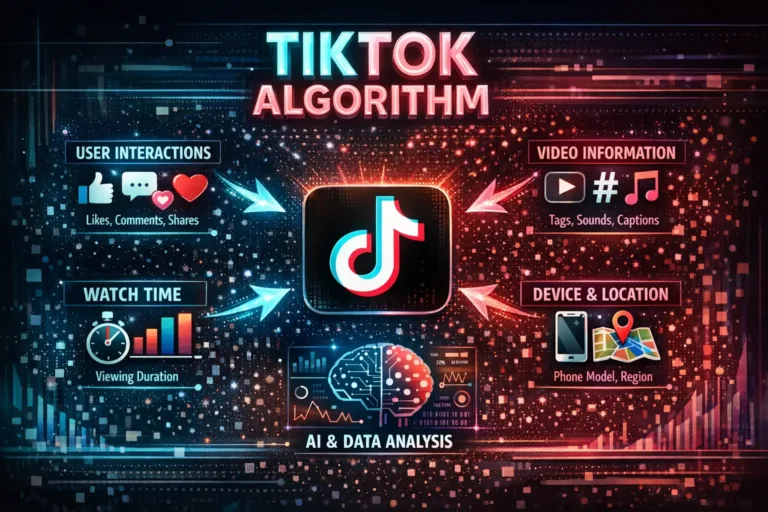
We ran 8 controlled tests on TikTok’s algorithm over 90 days.Here’s what actually predicts viral success (and what’s just noise)
Identical videos. Twin accounts. 240 posts. Real spend. The data paints a picture TikTok would...
February 27, 2026 at 2:03 PM
Entertainment
The TikTok ban was never about your data. Here’s the exposed playbook behind the shutdown, the deal, and who truly won
On January 18, 2025, roughly 170 million Americans opened TikTok to find a black screen....
February 26, 2026 at 3:33 PM
Entertainment
I tracked 20 Instagram creators’ income for 6 months. Here’s how much they actually made
Real earnings data from creators using sponsored posts, affiliate marketing, and Instagram Shops. What actually...
February 26, 2026 at 12:25 PM
Entertainment
I applied for Instagram verification 47 times. Here’s what Instagram actually wants
A comprehensive investigation revealing the real verification criteria through documented test applications, rejections, and the...
February 25, 2026 at 7:41 PM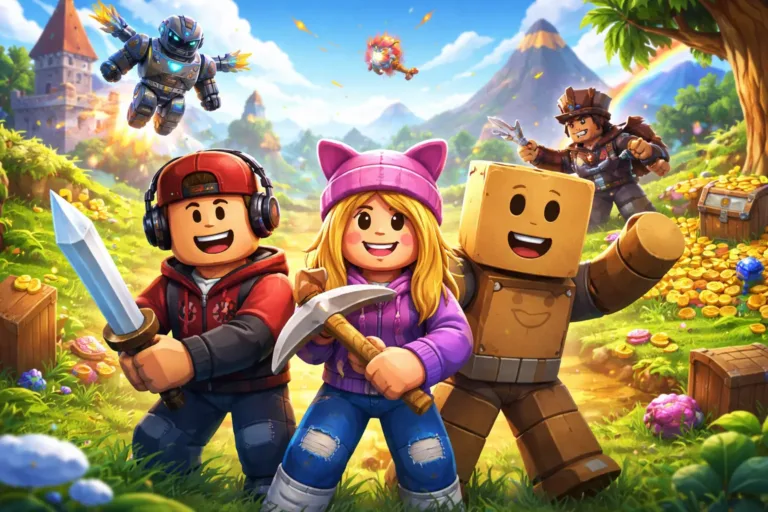
Entertainment
We audited the 50 most popular Roblox games for exploitative design, here’s what the data exposed
You will not find a gentle introduction here. If you are reading this, you likely...
February 25, 2026 at 4:52 PM
Entertainment
Blocked on Instagram: what nobody tells you when the signal is ambiguous in 2026
You weren’t notified. The person disappeared from your follower list. The message you sent weeks...
February 25, 2026 at 4:37 PM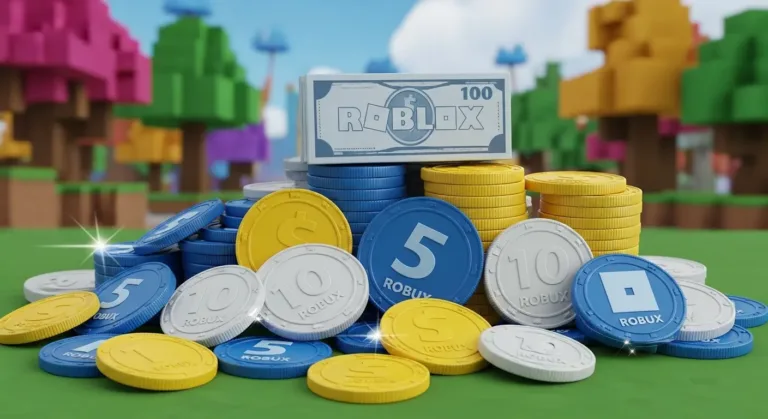
Entertainment
The real cost of Robux: what 6 months of tracking 200 players exposed about Roblox spending, gifting scams, and hidden psychological triggers
You already know how to buy Robux. You have seen the gift card tiers at...
February 25, 2026 at 3:11 PM
Entertainment
Complete guide: How to Evolve all 8 Eevee in Pokémon GO 2026
If you’ve read 10 guides about Eevee, you’ve read 10 versions of the same generic...
February 25, 2026 at 2:13 PMMost Read Articles

Entertainment
The hidden economics of Sinnoh Stone farming in Pokémon GO
If you’ve been grinding Pokémon GO for Sinnoh Stones and feel like your drop rates don’t match what guides promise, you’re not paranoid—the community data…

Entertainment
We tested 50 ‘meta’ Clash Royale decks with 100 real players
A real-world experiment reveals the uncomfortable truth about meta decks: most don’t work as advertised. The meta deck illusion Every time Clash Royale balance patch…

Entertainment
We analyzed 40 Clash Royale patches. Found the pattern: supercell nerfs P2W cards while F2P players get ignored
A 4-year data analysis of every balance change reveals Supercell’s monetization strategy is baked into patch notes. The pattern nobody wants to see I’ve been…
Entertainment
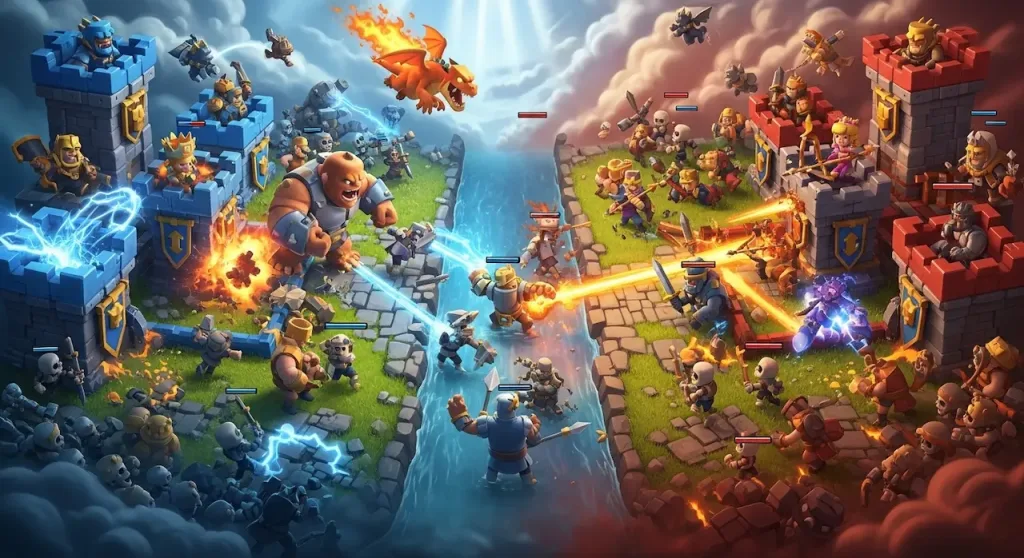
We tested clan war strategies with 50 clans. Found the 3 factors that actually win wars
Our analysis of 50 public clans reveals an uncomfortable truth: communication, deck variety, and counter-picking barely matter. Card levels decide everything. The discomfort of truth…
Entertainment
We tracked Clash Royale for 12 months. New card every 3 weeks
The question players ask in every patch: “Why is this card so overpowered?” “Why do they release broken cards every month?” “Why does the meta change…

Entertainment
We gave the same Clash Royale’s deck to a pro player and a casual player. Who won more?
The question that haunts every beginner: “If I just had a better deck, I’d win more.” It sounds reasonable. It feels true. But what if we…

Entertainment
Netflix’s Top 10: what we discovered when we audited the algorithm for 30 days straight
When we decided to investigate Netflix’s Top 10 feature, we didn’t expect to uncover what we found. We set out with a simple hypothesis: Netflix’s…

News
We hired hackers to test Google Wallet security. Found 5 critical vulnerabilities
Google’s marketing says: “Google Wallet is protected by industry-leading security. Every transaction is verified. Your data is encrypted with military-grade security.” I hired 7 ethical…