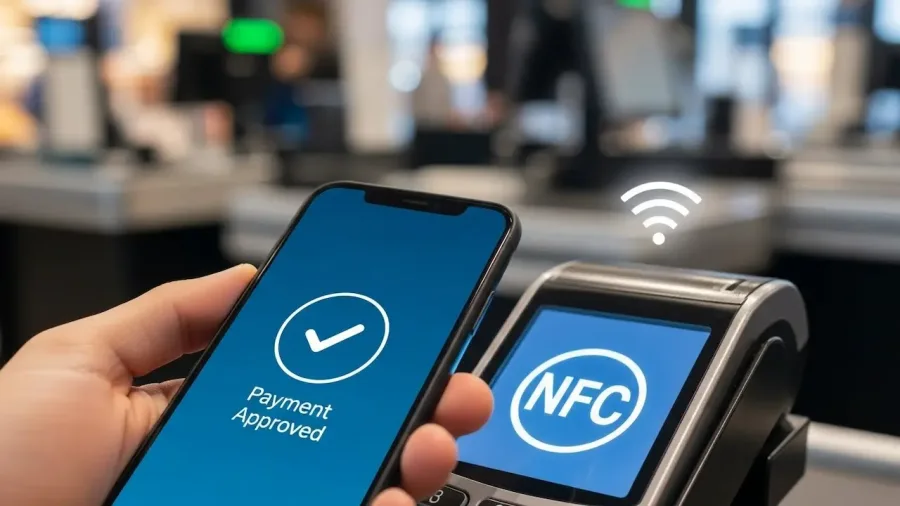
The Google Wallet app transforms your Android smartphone into a secure, convenient digital payment method. Utilizing Near Field Communication (NFC) technology, you can make purchases anywhere that accepts tap-to-pay, leaving your physical cards at home.
How to use Google Wallet for contactless payments in stores? (image: Gowavesapp)
This comprehensive guide covers everything from initial setup and security checks to making your first contactless payment and troubleshooting common issues, ensuring you maximize the security and efficiency of your mobile wallet.
Phase 1: pre-payment setup and security
Before successfully tapping your phone to pay, you must ensure your device is compatible and meets Google’s strict security requirements.
1. Setting up Google Wallet on your smartphone
Download: If not pre-installed, download the Google Wallet app from the Google Play Store.3
Sign-In: Launch the app and sign in with your primary Google Account. This account ties all your payment methods, passes, and loyalty cards together.
Permissions: Grant the necessary permissions, especially access to the NFC function and device controls.
2. Adding your credit or debit cards
Cards must be digitized and securely tokenized to work with contactless payments.
Process: Inside the Google Wallet app, tap the “Add to Wallet” button. Choose “Payment card.”
Input: You can either scan your card using your phone’s camera or enter the details manually.6
Verification: This is a crucial security step. Your bank will send a one-time verification code via SMS, email, or their banking app. You must input this code into Google Wallet to activate the card’s digital token. Until this step is complete, the card cannot be used for tap-to-pay.
3. Ensuring device compatibility and security
The following settings are non-negotiable for Google Wallet functionality:
NFC Confirmation: Go to Settings > Connected devices > Connection preferences > NFC. Ensure NFC is toggled ON. If NFC is disabled, Google Wallet will not work.
Screen Lock Requirement: Wallet requires a screen lock (PIN, pattern, or password) to prevent unauthorized transactions if your phone is lost.7
Biometric Activation: Activate and register your fingerprint or face recognition (if available). Biometrics provide the fastest and most secure method of authenticating high-value transactions.
Default Payment App: Ensure Google Wallet is set as the default app for NFC payments in your phone’s settings.8
Phase 2: making the contactless payment
Once setup is complete, making a payment is a simple, two-step process at any point-of-sale (POS) terminal displaying the contactless payment symbol.
4. Select and prepare your default card
The first card in your Google Wallet stack is the default payment method.
Action: Open the Google Wallet app and ensure the card you intend to use is set as the primary (default) card.
Switching Cards: If you need to pay with a different card, open the app, swipe to the desired card, and tap it to make it the active card before tapping the terminal.
Authentication Pre-Check:Unlock your phone using your fingerprint or PIN before approaching the terminal.11 While low-value transactions may only require a lit screen, unlocking beforehand guarantees maximum success.
5. Execute the tap-to-pay transaction
Identify the Terminal: Wait for the cashier to finalize the purchase and prompt for payment. Look for the contactless symbol on the POS terminal.
Position: Hold the back of your unlocked phone steadily within a few centimeters (inches) of the contactless symbol on the terminal.12
Confirmation: A successful transaction will be confirmed by:
A checkmark and confirmation message on your phone screen.
A beep or success message on the payment terminal.
Phase 3: troubleshooting and safety
Knowing how to react to payment errors and maintaining security will ensure a smooth mobile payment experience.
6. Troubleshooting common issues
If your payment fails, follow these steps sequentially:
Issue
Cause
Quick Fix
Nothing Happens / Error
NFC is disabled or the phone is not positioned correctly.
1. Double-check that NFC is ON in Quick Settings. 2. Restart the terminal process with the cashier. 3. Try placing the top-center of your phone over the terminal’s symbol.
“Authentication Required”
You attempted a high-value payment without unlocking the screen or using biometrics.
Unlock your phone completely (fingerprint/PIN) before tapping the terminal again.
Card Declined
The card is not fully verified or has expired.
Open the Google Wallet app and look for an “Inactive” or “Re-verify” prompt next to the card. Complete the bank’s verification process.
7. Tips for safe and efficient mobile payments
Review History: Regularly check your transaction history within the Google Wallet app to quickly spot any unauthorized activity.
Keep Software Updated: Always install the latest Android OS and Google Wallet app updates. These often contain critical security patches.
Privacy: Since Google Wallet uses tokenization (meaning your real card number is never shared with the merchant), it offers a higher layer of protection against card skimming compared to physical card use.13
Biometric Priority: Always prioritize using biometric authentication (fingerprint/face ID) over a PIN, as it is faster and significantly more secure for every transaction.
By following these setup and usage guidelines, you can rely on Google Wallet for quick, secure, and hassle-free payments, truly turning your smartphone into your ultimate digital wallet.