Many users ask if they can stream Apple TV content directly to a Chromecast device. Although both devices support media streaming, they use different technologies, which can cause compatibility challenges.
Understanding these differences helps identify possible workarounds and limitations when trying to use Apple TV with Chromecast.
This guide explains what you need to know to stream Apple TV content on Chromecast successfully.
Understanding Apple TV and Chromecast Technologies
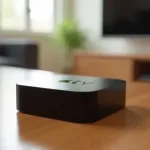
Apple TV and Chromecast are popular streaming devices, but they work in different ways with unique technologies. Apple TV runs on tvOS, offering a smooth experience with Apple services and AirPlay, which lets you easily share content from your Apple devices.
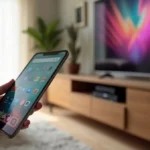
On the other hand, Chromecast uses casting technology, allowing you to stream videos, music, and more by sending media from your smartphone, tablet, or browser directly to your TV. Understanding these differences can help you choose the best streaming device for your needs.
Compatibility challenges between Apple TV and Chromecast
Why do compatibility issues occur between Apple TV and Chromecast, even though both are popular streaming devices? The main reason lies in their different technologies. Apple TV uses AirPlay, while Chromecast relies on Google Cast, two separate streaming protocols that don’t naturally work together.
Because of these distinct ecosystems, it can be challenging to share content or control devices seamlessly between Apple TV and Chromecast without using extra apps or hardware. Understanding these differences can help users find the best solutions for smooth streaming across platforms.
How to cast Apple TV+ content to Chromecast
Streaming Apple TV+ on a Chromecast device might seem tricky due to compatibility differences, but it’s definitely possible with the right method. The easiest way to watch Apple TV+ on Chromecast is by using the Google Chrome browser on your computer. Simply open the Apple TV+ website or app on Chrome, then use the browser’s built-in cast feature to stream your favorite shows and movies directly to your Chromecast device. This quick and simple solution lets you enjoy Apple TV+ content on your big screen without any hassle.
Using third-party apps to stream Apple TV on Chromecast
If you want to watch Apple TV content on your Chromecast but find the direct casting options limited, third-party apps offer an effective solution. These apps act as bridges, allowing you to mirror or cast Apple TV videos from your phone or tablet to your Chromecast device. Popular third-party apps like Replica or AirScreen support Chromecast integration and are easy to install on your mobile devices.
By using these apps, you can enjoy seamless streaming of Apple TV shows and movies on your Chromecast, overcoming the native compatibility challenges. For the best experience, choose apps with high user ratings and regular updates to ensure smooth performance.
Limitations of casting Apple TV App to Chromecast
While Chromecast provides flexible streaming options, casting the Apple TV app to Chromecast comes with several limitations. Since the Apple TV app does not offer native Chromecast support, users may experience limited content availability and inconsistent playback quality.
Key features such as subtitles, multiple audio tracks, and offline viewing are often not fully supported when casting, leading to a less optimal viewing experience compared to using native Apple devices or streaming via AirPlay. Understanding these restrictions can help users make informed choices about the best way to enjoy Apple TV content.
Alternative streaming solutions for Apple users
How can Apple users enjoy seamless streaming without Chromecast? They can use AirPlay, a built-in feature that lets you stream videos, music, and photos directly from your iPhone, iPad, or Mac to compatible smart TVs or Apple TV devices. Besides AirPlay, popular apps like Plex and streaming platforms such as Netflix, Disney+, and Apple TV+ offer native support for Apple devices, ensuring smooth and reliable streaming experiences.
These Apple-friendly streaming solutions deliver better integration and optimized performance, making it easy to enjoy your favorite content without extra hardware.
Tips for optimizing streaming quality on Chromecast
To enjoy the best streaming quality on your Chromecast, follow these simple tips. First, make sure your device is connected to a strong and stable Wi-Fi network to prevent buffering and lag. Reduce Wi-Fi interference by keeping your router close to your Chromecast and avoiding crowded networks. Always keep your Chromecast firmware updated to benefit from the latest performance improvements.
Closing unnecessary background apps on your casting device can free up resources, improving streaming smoothness. Finally, select the highest available streaming resolution in your app settings for clearer, sharper video. Implementing these steps will help you get the most out of your Chromecast streaming experience.
Conclusion
Apple TV and Chromecast are popular streaming devices, but they work on different platforms, which can cause compatibility issues. You can cast Apple TV+ content using the Google Chrome browser, but the Apple TV app itself does not support Chromecast directly. This means you might experience lower streaming quality or limited content access when using Chromecast with Apple TV.
Some third-party apps or workarounds can improve compatibility, but it’s important to understand these limitations. Adjusting Chromecast’s streaming settings can also help enhance your viewing experience. For the best results, consider devices or apps fully compatible with Apple TV services.