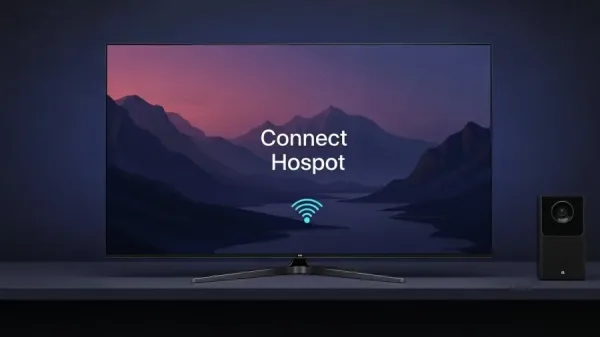
This feature allows you to stream your favorite shows and movies on Apple TV using your phone’s internet connection. However, keep in mind that using a hotspot may consume a significant amount of data, so it’s important to monitor your data plan to avoid extra charges.
Additionally, the streaming quality depends on the stability and speed of your mobile hotspot connection. For the best experience, ensure your hotspot signal is strong, and your data plan supports high usage.
Connecting Apple TV to a hotspot is a flexible solution for on-the-go entertainment and emergency internet access.
Understanding Apple TV’s Network Connectivity Options
Apple TV provides versatile network connectivity options to enhance your streaming and app experience. It supports Wi-Fi connections on both 2.4 GHz and 5 GHz bands, ensuring reliable and fast internet access. For users who prefer a wired setup, Apple TV also offers an Ethernet port for a stable and consistent connection. These connectivity features help deliver smooth streaming, quick app downloads, and timely software updates, catering to different user needs and environments. Whether you stream movies, play games, or use apps, Apple TV’s network options keep you connected with ease.
Setting up a mobile Hotspot on your smartphone
Most smartphones come with a built-in mobile hotspot feature that lets you share your cellular data connection with other devices. To turn on the hotspot, simply go to your phone’s settings, find the hotspot or tethering option, and enable it.
Don’t forget to create a strong password to keep your connection secure. Once activated, your phone acts as a Wi-Fi access point, allowing laptops, tablets, and other devices to connect to the internet using your mobile data plan. This is a convenient way to stay connected on the go without needing extra hardware or complicated setups.
How to connect Apple TV to a mobile hotspot
Connecting your Apple TV to a mobile hotspot is a simple way to stream content when traditional Wi-Fi isn’t available. To get started, turn on the mobile hotspot feature on your smartphone. Then, on your Apple TV, go to Settings > Network. Select your mobile hotspot’s Wi-Fi network from the list, enter the password, and your Apple TV will connect.
This setup lets you enjoy your favorite apps and streaming services on Apple TV using your mobile data. Follow these easy steps to stay connected anytime, anywhere!
Data usage considerations when using a Hotspot
Streaming video on a mobile hotspot can quickly consume a large amount of data, especially when watching on Apple TV in HD or 4K quality. It’s important to keep an eye on your data usage to avoid extra charges from your provider. To save data, you can lower the streaming quality in Apple TV settings. Managing your data efficiently ensures uninterrupted streaming and helps you stay within your data limits.
Compatibility of different mobile carriers with Apple TV
Mobile carriers differ significantly in how well they support Apple TV streaming via hotspot connections. Some carriers provide unlimited data plans and reliable network speeds, making them ideal for smooth Apple TV viewing. Others may limit hotspot data or reduce speeds, which can cause buffering and interruptions.
To ensure a seamless Apple TV experience, users should check their carrier’s hotspot policies and network performance before streaming. Choosing a mobile carrier with strong hotspot compatibility is key to enjoying uninterrupted Apple TV content on the go.
Troubleshooting connection issues with Hotspots
If you’re streaming Apple TV with a hotspot and facing connection problems, you’re not alone. Even when your carrier supports hotspot use, issues like weak signal strength, device compatibility glitches, or incorrect network settings can disrupt your streaming experience.
To fix these common problems, try restarting your devices, making sure your hotspot is properly activated, checking your data limits, and confirming your device is connected to the correct Wi-Fi network. By following these simple troubleshooting steps, you can improve your hotspot connection and enjoy smoother Apple TV streaming anywhere.
Impact of Hotspot speed and stability on streaming quality
The speed and stability of your hotspot are crucial for a great streaming experience on Apple TV. Fast and reliable connections ensure smooth video playback without buffering or drops in picture quality. On the other hand, slow or unstable hotspots can cause frequent interruptions, lower resolution, and longer loading times. To enjoy the best streaming performance, make sure your mobile hotspot has a strong signal and enough bandwidth to handle high-quality video streaming.
Security concerns when using public or mobile Hotspots
Using an Apple TV on public or mobile hotspots can pose serious security risks. These networks often lack strong encryption, making it easier for hackers to intercept your data. This can lead to unauthorized access, data theft, or malware infections. To protect your privacy and keep your Apple TV secure, avoid connecting to unsecured hotspots or use a reliable VPN when streaming on public networks. Staying cautious helps ensure your device remains safe while enjoying your favorite apps and content.
Alternative methods to share mobile data with Apple TV
Worried about security when using public Wi-Fi or mobile hotspots? There are safer ways to connect your Apple TV to the internet using mobile data. One popular method is setting up a personal hotspot on your smartphone, allowing you to share your mobile data securely.
Another option is using a dedicated mobile router designed for reliable and protected internet sharing. For tech-savvy users, USB tethering through a computer can also provide a secure connection to share mobile data with your Apple TV. These alternatives help ensure your streaming experience stays safe and smooth.
Tips to optimize streaming performance over a Hotspot
Streaming content over a mobile hotspot can be a convenient solution when Wi-Fi isn’t available. To improve your streaming experience on devices like Apple TV, follow these simple tips:
1. Place the Hotspot Device Near Your Streaming Device
Keep your mobile hotspot close to your Apple TV or streaming device to ensure a strong, stable signal and reduce interference.
2. Limit the Number of Connected Devices
Disconnect other devices from the hotspot to reduce bandwidth competition and improve streaming speed.
3. Adjust Streaming Quality Settings
Lower the video quality in your streaming app settings to minimize buffering and maintain smooth playback.
4. Monitor Your Data Usage
Keep an eye on your mobile data consumption to avoid exceeding your plan limits and experiencing interruptions.
Conclusion
Yes, Apple TV can connect to a mobile hotspot, allowing you to stream content even when traditional Wi-Fi networks aren’t available. To do this, simply enable the hotspot feature on your smartphone and then go to the Apple TV’s network settings to connect to your phone’s hotspot. This is a great solution for streaming on the go, but keep in mind that mobile data usage can be high, so monitor your data plan to avoid extra charges.
Also, ensure your carrier supports hotspot functionality and use strong security settings to keep your connection safe and stable. Connecting Apple TV to a mobile hotspot is a flexible way to enjoy your favorite shows and apps anywhere.