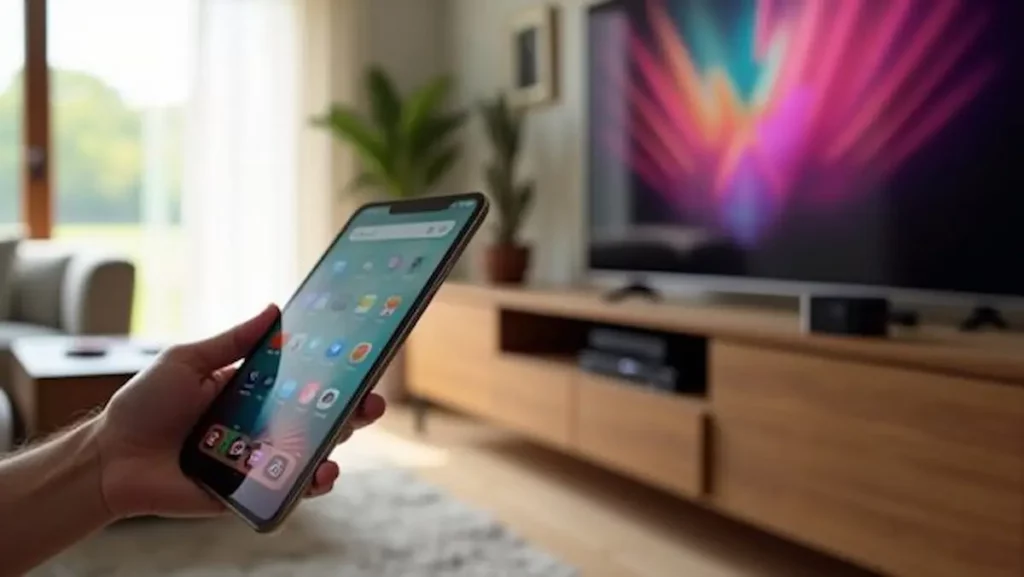
Connecting your iPad to an Apple TV is one of the easiest ways to enjoy your favorite apps, videos, presentations, and photos on a bigger screen. Whether you want to stream movies, share family pictures, run a slideshow, play games, or mirror your iPad for work or school, Apple’s ecosystem makes the process smooth and intuitive.
Even if you’re a first-time user, this guide will walk you step by step through everything you need to know—from checking compatibility to troubleshooting issues—so you can enjoy a seamless and high-quality viewing experience.
Before you begin, the most important thing is ensuring that both your iPad and Apple TV are ready for connection. Compatibility, software versions, and Wi-Fi network settings can all influence how well your iPad connects to your Apple TV. By preparing your devices properly, you reduce the chances of running into interruptions or connection failures later on.
Checking Compatibility Between iPad and Apple TV
Before attempting to connect your iPad to an Apple TV, it’s essential to confirm that both devices support the necessary features. Most modern iPads and Apple TVs include AirPlay, but older versions may require software updates.
Start by checking your device models. AirPlay is available on iPads running iOS 12 or later, while Apple TV models such as Apple TV HD and Apple TV 4K have built-in AirPlay support. If you own an older Apple TV, ensure it still receives updates or supports AirPlay 2 for improved performance.
Next, verify that both devices are updated to the latest versions of iOS/iPadOS and tvOS. Software updates improve stability, fix bugs, and enhance AirPlay performance. Updated devices minimize the risk of disconnections and ensure compatibility with the latest apps and streaming formats.
Lastly, make sure your iPad and Apple TV are connected to the same Wi-Fi network. AirPlay relies on local network communication, so being connected to different networks—or having one device on Wi-Fi and the other on Ethernet—may prevent them from detecting each other. After completing these checks, you’re ready to begin connecting your iPad to your Apple TV.
Connecting iPad to Apple TV Using AirPlay
AirPlay is the most popular and reliable method for connecting your iPad to an Apple TV. It allows you to mirror your device’s screen or stream individual videos, apps, and music directly to your TV—all without cables.
To start, swipe down from the top-right corner of your iPad screen to access the Control Center. Once open, locate the Screen Mirroring icon, which looks like two overlapping rectangles. Tap it, and a list of available AirPlay devices will appear. Select your Apple TV, and within seconds, your iPad screen will appear on your television.
If you don’t want to mirror your entire screen and instead prefer to stream specific content, such as a YouTube video or a movie from Apple TV+, simply open the app and tap the AirPlay icon (a small screen with a triangle). This method reduces battery consumption and provides a smoother experience, especially for media playback.
AirPlay is completely wireless, requires no additional setup, and supports high-quality video and audio—making it the easiest and most convenient way to connect your iPad to your Apple TV.
Using the Apple TV Remote App on Your iPad
Aside from screen mirroring, your iPad can also function as a remote control for your Apple TV using the Apple TV Remote app. This app is especially useful if you misplace your physical remote or want a more intuitive typing experience.
After ensuring your iPad and Apple TV are on the same Wi-Fi network, the Remote app will automatically detect your Apple TV. You can navigate menus, select apps, adjust volume, and even use the iPad keyboard when searching for content. It’s a faster and more comfortable experience, especially when typing long search queries.
The Remote app also includes gesture controls, making navigation fluid and responsive. Whether you’re editing settings, browsing apps, or managing playback, turning your iPad into a remote enhances usability and streamlines your interaction with the Apple TV.
Troubleshooting Common Connection Issues
Even with the best setup, you may encounter connection difficulties. Understanding the most common problems makes troubleshooting quick and simple.
If AirPlay isn’t working, start by confirming both devices are on the same Wi-Fi network. If the network is overloaded or unstable, consider resetting the router or switching bands (2.4 GHz vs 5 GHz).
Additionally, make sure Bluetooth is enabled, as it helps AirPlay discover nearby devices. Restarting both your iPad and Apple TV often solves temporary glitches or network conflicts.
If your devices still won’t connect, try checking for software updates. Outdated versions can cause compatibility issues or performance problems. You can also reset your iPad’s network settings if the problem persists, although this should be a last resort since it erases saved Wi-Fi passwords.
By following these steps, most connection issues can be resolved quickly, restoring smooth communication between your iPad and Apple TV.
Adjusting Display Settings for Optimal Viewing
Once connected, adjusting display settings ensures you get the best possible picture quality. On your Apple TV, open Settings > Video and Audio, where you can choose resolution options, HDR modes, and color balance settings that match your television’s capabilities.
Meanwhile, you can fine-tune your iPad’s display settings—such as turning on True Tone or adjusting brightness—so colors look natural and comfortable for long viewing sessions.
Some apps also offer custom display options during AirPlay playback, allowing you to adjust aspect ratio or zoom to better fit your TV screen. Spending a few minutes optimizing these settings can significantly improve the viewing experience.
Tips for Streaming and Mirroring Content Efficiently
To ensure smooth, lag-free streaming, make sure you are using a strong and stable Wi-Fi connection. Closing unused apps on your iPad frees up processing power and RAM, improving overall performance during mirroring.
Keep your iPad near your Apple TV to ensure a strong AirPlay signal. Also, make it a habit to update your apps and system software, as they often include improvements for streaming and AirPlay functionality.
By following these tips, you’ll experience smoother playback, clearer images, and reduced latency—perfect for movies, presentations, or gaming.
Conclusion
Connecting your iPad to an Apple TV is one of the most effective ways to enhance your entertainment and productivity experience.
By checking compatibility, keeping both devices updated, and ensuring they share the same Wi-Fi network, you can enjoy seamless streaming and effortless screen mirroring. Whether you’re watching movies, giving a presentation, or simply sharing photos with family and friends, this setup allows you to take full advantage of Apple’s ecosystem.
With AirPlay, the Remote app, and the right troubleshooting steps, you can enjoy a smooth, reliable, and high-quality connection every time.
Amanda has a degree in Languages, is a postgraduate student, and is passionate about content creation. After joining Cenário Capital, she discovered a strong interest in technology. She currently works on the Marketing team, in the SEO and Content squad.