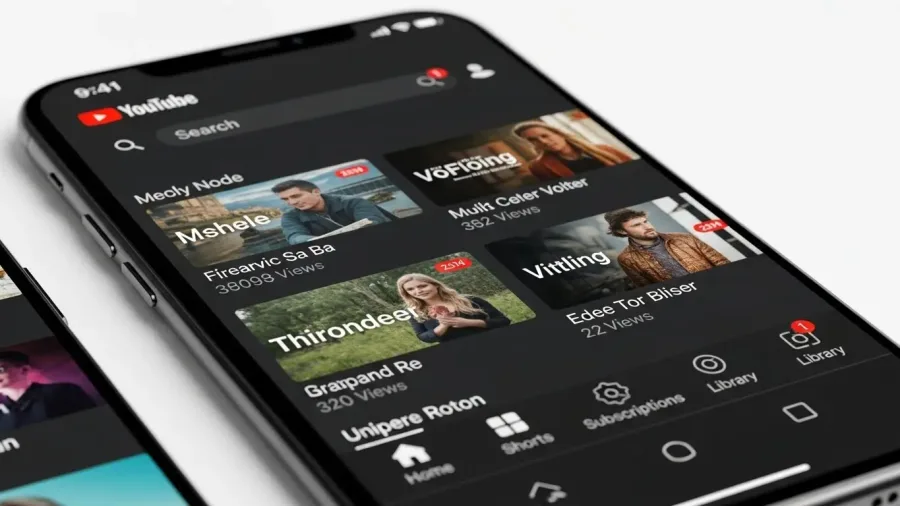
Enabling Dark Mode within the YouTube app is one of the quickest and most effective ways to customize your mobile viewing experience. This feature is essential for those who consume content frequently, as it significantly reduces the screen’s harshness and improves comfort, especially when viewing videos in dimly lit environments.
How to enable YouTube app dark mode? (image: Gowavesapp)
Activating this theme is seamless and follows a uniform, easy-to-navigate path across both Android and iOS devices.
1. Understanding Dark Mode: why it matters for your eyes and battery
Dark Mode fundamentally reverses the traditional color scheme—moving from a light background with dark text to a dark background with light text. This change offers multiple proven benefits:
Significant Reduction in Eye Strain: When you look at a bright white screen in a dark room, your pupils have to constrict rapidly to adapt to the high contrast, leading to visual fatigue and potential headaches. The reduced brightness and contrast of the Dark Mode setting lessen this effect, providing a much more comfortable viewing experience during evening hours.
OLED Screen Efficiency (Battery Life): On modern smartphones utilizing OLED or AMOLED display technology, each pixel emits its own light. When a pixel displays true black, it is effectively turned off and consumes no power. By switching to a dark theme, YouTube turns off vast segments of your screen’s pixels, which can lead to a measurable improvement in battery longevity compared to using the all-white Light Theme.
Reduced Glare and Better Immersion: The dark background minimizes reflective glare on the screen, allowing viewers to focus entirely on the video content, leading to a more immersive and cinematic experience.
2. Accessing the appearance settings (the same on all devices)
Regardless of whether you are on an Android phone, an iPhone, or an iPad, the navigation path to the theme settings is universal within the YouTube application itself.
Step 2.1: open the account menu
Launch the YouTube App on your mobile device.
Look to the top right corner of the screen.
Tap on your Profile Picture (your personal avatar or initial icon). This action opens the primary account and options menu.
Step 2.2: navigate to general settings
Scroll down the expanded account menu.
Tap on the option labeled “Settings” (usually identified by a gear icon $\text{⚙️}$).
In the main Settings menu, locate and tap on the “General” section.
Step 2.3: find the theme control
Within the General settings, look for the option titled “Appearance” or “Theme.” Tap this option to open the configuration choices.
3. Turning on Dark Mode: the theme choices
Once inside the Appearance settings, you will find three choices that determine the visual style of your YouTube app.
Light Theme: This is the default setting, featuring the traditional bright white background.
Dark Theme:Select this option to permanently enable Dark Mode. The app will instantly switch to the dark gray and black interface, significantly reducing screen luminosity.
Use Device Theme: This is the recommended setting for power users. Selecting this allows the YouTube app to automatically synchronize its theme with your phone’s system settings. If you have scheduled your phone to switch to Dark Mode at sunset, the YouTube app will seamlessly follow that schedule, ensuring maximum comfort without manual switching.
4. Troubleshooting and customization tips
If the Dark Mode setting doesn’t seem to hold, or if you want to enhance the experience further, these tips provide solutions.
Verify System Integration: If you chose “Use Device Theme” and the app is still bright, you must confirm that your phone’s core system is actually set to Dark Mode. Go to your device’s main Settings > Display menu and manually check the system theme setting.
The Cache Glitch: If the app appears to switch but then reverts to white or displays mixed elements, the problem may be a corrupted cache.
Android Users: Go to your phone’s Settings > Apps > YouTube > Clear Cache to resolve this common conflict safely.
iPhone/iOS Users: The safest fix is to “Offload” the app via Settings > General > iPhone Storage and then reinstall it to clear the corrupted cache files.
Enhance Viewing with Playback Controls: Dark Mode works best when the video quality is sharp. During playback, tap the gear icon $\text{⚙️}$ and choose Quality. Ensure you are set to the highest resolution (e.g., 1080p or 4K) supported by your network to match the premium feel of the dark interface.
Check for Updates: An outdated YouTube app may have bugs that interfere with theme settings. Always verify that your app is current via the App Store or Google Play.
By taking these few moments to enable YouTube app dark mode, you are making a conscious choice to prioritize visual comfort and battery life, transforming your favorite entertainment app into a more ergonomic tool.