Encountering a verification error when adding a card to Google Wallet is frustrating, but it’s usually due to a security mismatch between Google, your device, and your bank. The payment process requires your card to be tokenized—a security process that issues a unique digital code for your device.
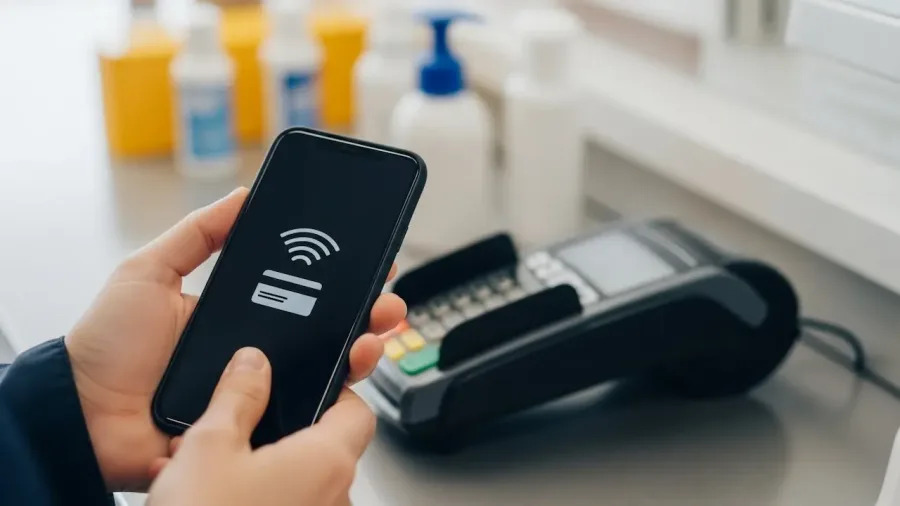
How to fix Google Wallet not verifying your card (image: Gowavesapp)
This guide provides simple solutions and advanced troubleshooting steps to resolve the Google Wallet not verifying your card issue quickly and efficiently.
Phase 1: address the basics (the card data & app integrity)
Before looking at complex issues, ensure all your details are correct and your app is functioning properly.
1. Check your card details and billing address accuracy
Verification often fails if the basic information doesn’t match the bank’s records.
Card Details: Carefully review the card number, expiration date, and CVV code. A single digit error will prevent tokenization.
Billing Address: This is crucial. Your billing address and ZIP/Postal Code entered in Google Wallet must exactly match the address your bank has on file for that specific card.
Action: Verify the address on your Google Payments Profile: Go to payments.google.com and check your payment methods profile details.1 Correct any outdated addresses.
2. Update the Google Wallet app and your device
Outdated software is a common cause of security conflicts.
Google Wallet: Check the Google Play Store for the latest version of the app.3 New security standards often require the latest updates.
Operating System (OS): Ensure your Android OS and Google Play Services are fully updated. Go to Settings > Security & privacy > System and updates.
3. Clear app cache and data
Corrupted temporary files can disrupt the verification process.
Action: Go to Settings > Apps > Google Wallet > Storage. Tap Clear cache.
Advanced: If the cache clear fails, you can try Clear data (or Clear Storage). Warning: This will remove all local settings and stored passes, requiring you to set up all cards and passes again.
Phase 2: the critical security & bank checks
If the basic solutions fail, the problem almost certainly lies with the bank or your device’s security status.
4. Ensure your bank supports Google Wallet
Not all banks or card types (especially some prepaid or commercial cards) are compatible with contactless payment tokenization.
Verification: Check the official Google Wallet list of supported banks and cards for your country.
Virtual Cards: If you are trying to add a virtual card (e.g., from an online bank), sometimes the process must be initiated directly from the bank’s mobile app (look for an “Add to Google Wallet” button) rather than adding it through the Wallet app manually.
5. Resolve verification code issues
The most common point of failure is receiving or submitting the one-time verification code from your bank.
Scenario
Cause
Solution
Code Not Received
Bank has outdated contact info (phone/email), or a block is in place.
Contact your bank and confirm they have your current phone number and email address on file. Try a different verification method (e.g., email instead of SMS).
Temporary Charge Code
You chose verification via small bank deposit/hold (e.g., ~$1.95 with a 6-digit code).
Wait up to 2-3 days for the charge to appear on your bank statement/transaction history before entering the code. Do not guess.
Code Expired
You waited too long to enter the code.
The code expires after 14 days. Delete the card from Wallet, re-add it, and request a new code immediately.
6. Check Your Phone’s Security Certification (Play Protect)
Google Wallet requires your device to meet strict security standards (a process called Integrity Check).
Non-Certified Devices: Google Wallet will not function on phones that are rooted, running an uncertified custom ROM, have an unlocked bootloader, or are running developer versions of Android.5
Action: Go to the Google Play Store app > Tap your Profile icon > Settings > About > Check the Play Protect certification status at the bottom. If it says “Device is not certified,” you cannot use Google Wallet for tap-to-pay.
Phase 3: advanced and bank-specific solutions
If all previous steps failed, you need direct intervention from your financial institution.
7. Contact your bank for token deletion (the expert fix)
The most frequent reason for cards failing to verify after switching phones or a factory reset is that the bank still holds an old, corrupted security token tied to your Google Account.
Action: Call your bank’s digital support line (it must be the bank that issued the card).
The Script: Tell the representative: “I am trying to add my card to Google Wallet, but the verification fails. Can you please check and delete all old provisioning tokens or digital wallet tokens associated with my device for this card?”
Why It Works: Asking them to specifically delete the token often bypasses standard support scripts and forces the bank’s digital team to clear the slate, allowing Google Wallet to issue a brand new token.
8. Try adding the card via your bank’s app
Some banks have better success rates when you initiate the Wallet connection through their dedicated mobile app, as it streamlines the token approval process.
Process: Open your bank’s app (not Google Wallet).6 Navigate to the card details or settings. Look for an option like “Add to Google Pay” or “Digital Wallets.” Follow the prompts from there.
By systematically addressing hardware compatibility, app integrity, and the crucial bank-side security tokens, you can effectively resolve the Google Wallet not verifying your card error and activate your mobile payments.