
Dramabox is designed primarily for mobile viewing, focusing on short, vertical dramas. While there may not be an official app for major TV platforms (like Roku or Fire Stick), getting Dramabox onto your big screen is straightforward and relies mainly on Casting or Cabling.
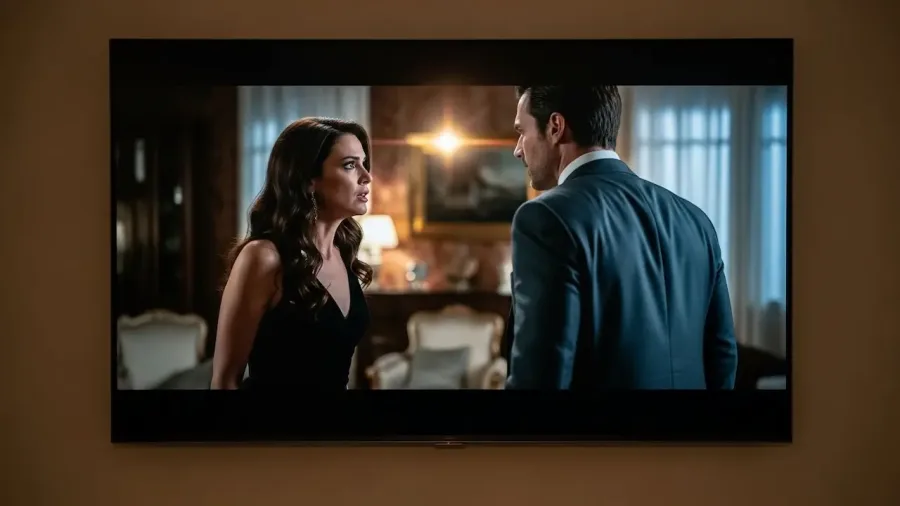
This guide details the simplest and most reliable methods to watch your favorite Dramabox content on any television.
Phase 1: the essential prerequisites
Before you start streaming, ensure your devices meet these basic requirements.
1. Check your TV’s casting compatibility
The quickest way to watch Dramabox on a big screen is by sending the video stream wirelessly from your phone or tablet.
Chromecast Built-in: Check if your Smart TV (Sony, Vizio, etc., or any TV with an attached Chromecast stick) has the Google Cast feature.
AirPlay: Check if your Smart TV (usually Samsung, LG, Vizio models) supports AirPlay 2 for streaming from an iPhone or iPad.
Networking: Ensure both your TV/Streaming Device and your Mobile Phone/Tablet are connected to the SAME Wi-Fi network. This is mandatory for casting to work.
2. Update the Dramabox mobile app
Always use the latest version of the Dramabox app on your phone, as updates often improve casting stability and video performance.
Action: Open the Google Play Store (Android) or App Store (iPhone) and ensure the Dramabox app is fully updated.
Method 1: Casting Dramabox from Mobile (Wireless)
Casting is the most convenient method, turning your phone into a remote control for your TV.
3. Casting with Chromecast (Android and iPhone)
This method works with any device that has a built-in Chromecast or a Google TV stick plugged in.
Open the App: Launch the Dramabox app on your Android phone or iPhone.
Start Playback: Select the short drama you want to watch and begin playing it.
Find the Cast Icon: While the video is playing, look for the Cast Icon ($\text{B}$) usually located in the upper or lower corner of the video player screen.
Select Your TV: Tap the Cast Icon and wait for a list of devices to appear. Select your Chromecast or Smart TV from the list.
Enjoy: The video will start playing on your TV. You can now lock your phone or use other apps—your phone acts only as a controller.
4. Casting with AirPlay (iPhone and iPad)
This method is specific to Apple devices and TVs supporting the AirPlay protocol.
Open the App: Launch the Dramabox app on your iPhone or iPad.
Start Playback: Begin playing the video you wish to stream.
Find the AirPlay Icon: Tap the screen. Look for the AirPlay Icon (a screen with an upward-pointing triangle: $\triangle$).
Select Your TV: Tap the AirPlay Icon and select your compatible Apple TV or AirPlay-enabled Smart TV from the list.
Mirroring Option: If the direct AirPlay icon is missing from the Dramabox app, you can use Screen Mirroring (swiping down from the top-right corner to open Control Center, then selecting Screen Mirroring) to display your entire phone screen on the TV.
Method 2: Connecting via Cable (Direct HDMI)
This method works with any TV that has an HDMI port, regardless of its “smart” capabilities, ensuring maximum compatibility.
5. Connecting your laptop to your TV (Most Reliable)
Using an HDMI cable provides a direct, stable connection that avoids buffering issues often associated with Wi-Fi.
Equipment Check: You need a standard HDMI cable. If your laptop doesn’t have an HDMI port, you will need a small adapter (e.g., USB-C to HDMI, or DisplayPort to HDMI).
Connection: Plug one end of the HDMI cable into your laptop’s port and the other end into an available HDMI port on your TV.
Select Input: Use your TV remote to select the HDMI Input corresponding to the port you used (e.g., HDMI 1, HDMI 2).
Start Streaming: Open the Dramabox website in your laptop’s browser (Chrome is recommended), log in, and start playing your show in full-screen mode.
6. Connecting your mobile phone to your TV
This is possible, but requires specific hardware.
Android (MHL/USB-C): Older Android phones may support MHL (Mobile High-Definition Link), requiring a special MHL-to-HDMI adapter. Newer phones use a USB-C to HDMI cable/adapter.
iPhone (Lightning): Requires an official Apple Lightning Digital AV Adapter connected to an HDMI cable.
Process: Plug the phone into the adapter, the adapter into the HDMI cable, and the cable into the TV. Select the correct HDMI input on your TV.
Troubleshooting and optimized viewing
If you encounter issues, follow these final steps for smooth playback.
7. Troubleshooting common streaming Issues
Buffering/Lag: The video stops or plays slowly.
Fix:Pause the video for 60 seconds to allow the stream to buffer ahead. Also, disconnect other devices using your Wi-Fi (like gaming consoles or other streaming apps).
Casting Icon Missing: The cast icon does not appear in the Dramabox app.
Fix: Ensure the Dramabox app is fully updated. Try closing and reopening the app. Restart your TV/Chromecast device to force a fresh network connection.
No Sound (HDMI): Video is playing but there is no audio.
Fix (Laptop): Check your laptop’s sound settings to ensure the HDMI output is selected as the default audio device.
8. Optimizing the viewing experience
Since Dramabox focuses on vertical video, optimize your TV settings:
TV Picture Settings: On most TVs, you can adjust the picture ratio (often called “Aspect Ratio” or “Zoom”). You may want to choose a “Zoom” or “Fill” option to eliminate large black bars, though this may crop some edges of the picture.
Resolution: When using casting or HDMI, ensure the Dramabox video player is set to the highest quality available (usually HD) within the app settings before starting the stream.
By utilizing casting technology or a simple HDMI cable, watching Dramabox on your television is a simple, effective way to enjoy your favorite mini-dramas on the big screen.